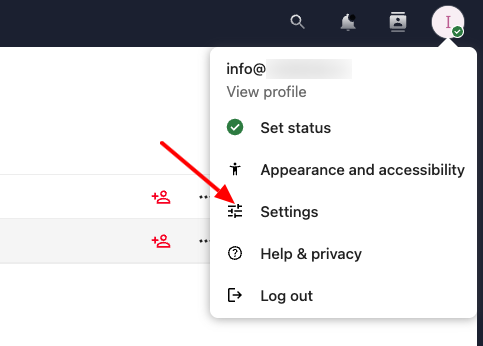
Under the general settings of ZoneCloud, you can manage your personal information, appearance, notifications, and similar options. To open settings, click on your profile picture in the top right corner and select Settings.
Personal Information
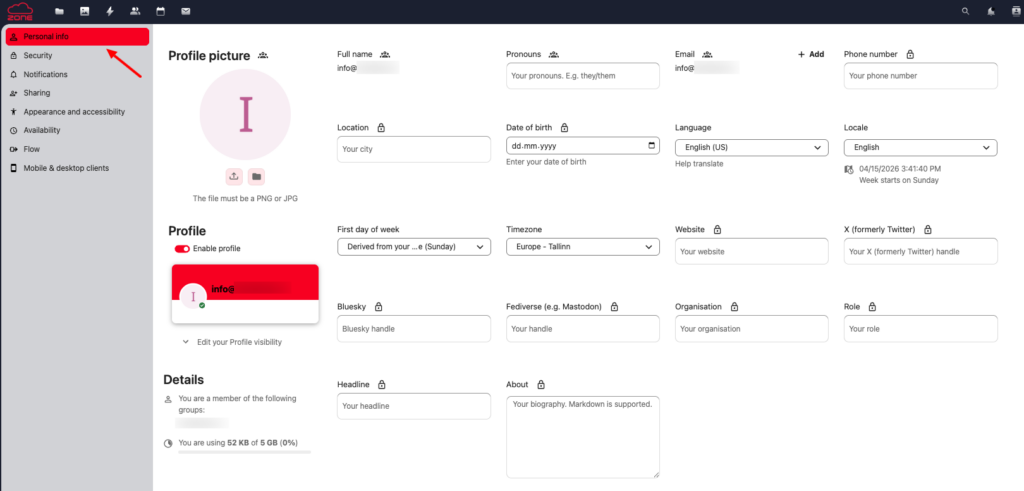
To change your name, profile picture, and language, select Personal Info from the menu on the left. There you can edit your name, choose your preferred language, and add or change your profile picture.
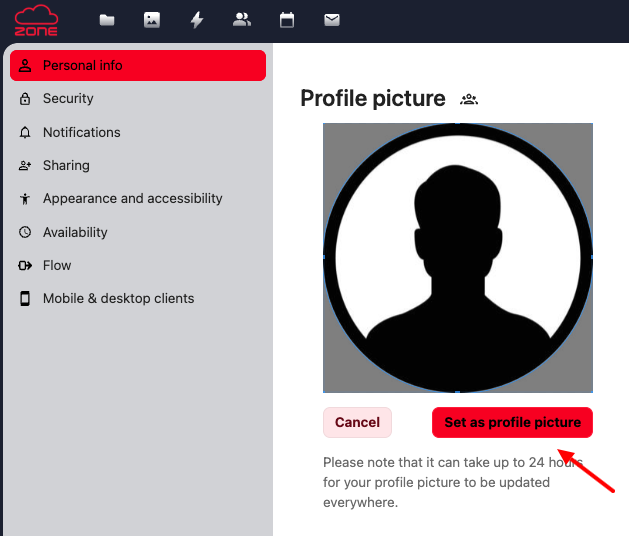
To add a profile picture, click the upload icon under your profile and choose an image from your device. Adjust the size using the mouse wheel. Then save it by clicking Set as profile picture.
Appearance Settings
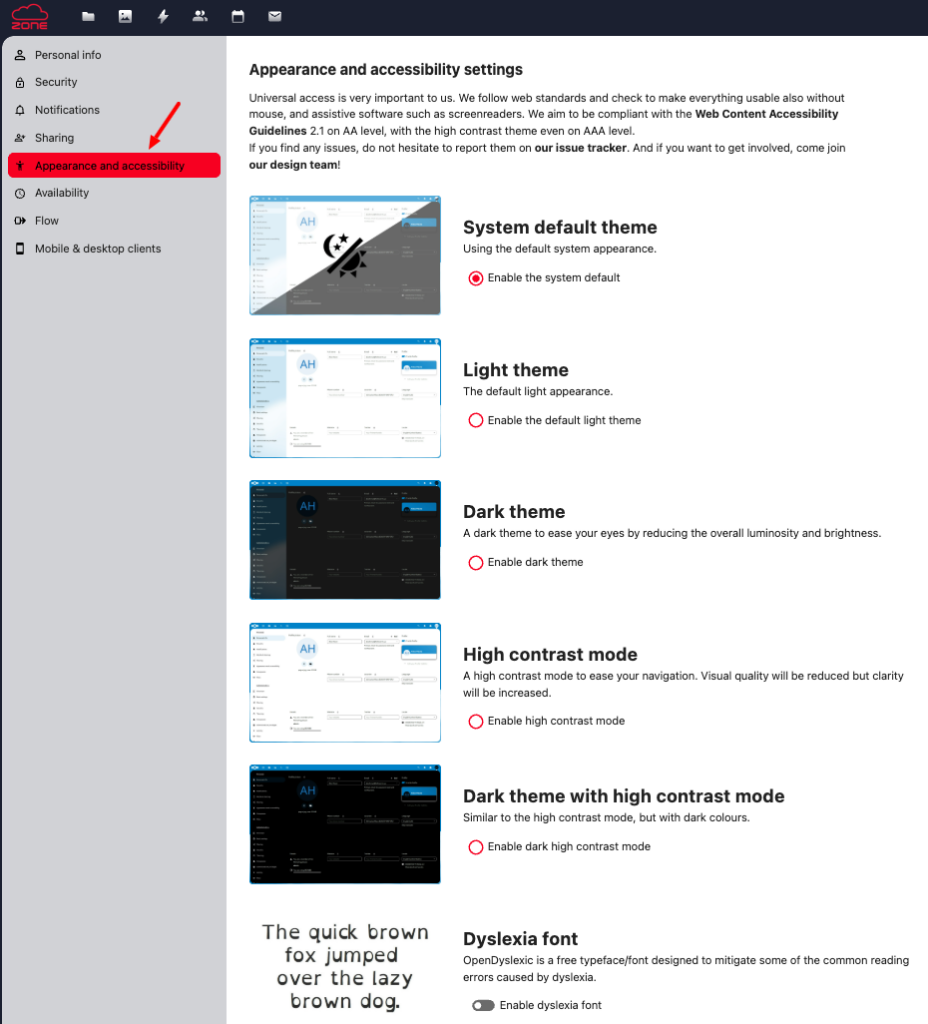
To change the design and colors, select Appearance and Accessibility from the left-hand submenu in settings.
There you can choose between several light, dark, and high-contrast themes. You can also leave the theme automatic based on your device settings, change the primary color, and customize other visual preferences. Changes are applied immediately.
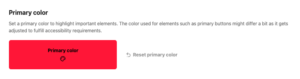
Additionally, you can change the default primary color (red) to another color. To do this, click on the primary color box, choose a suitable color, and then click the Choose button.
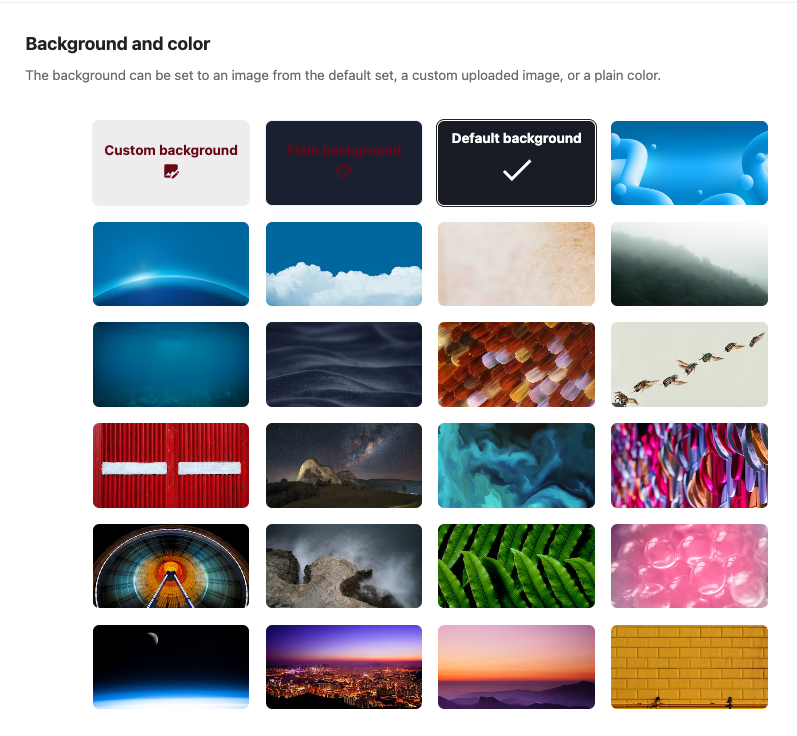
To change the background image, you can select one from the available options or upload your own image. To upload, click the Your selected background button. You can also choose to use a plain color instead of an image.
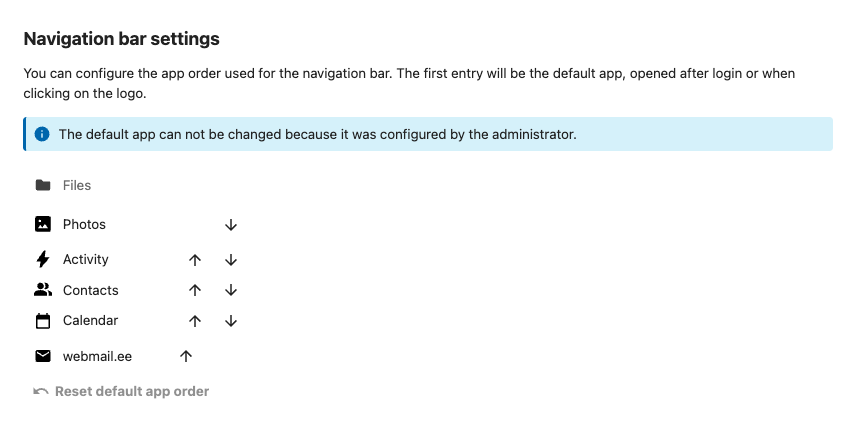
At the bottom, you can also change the order of the application bar. To rearrange items, click the corresponding button to move a tab up or down.
Notifications
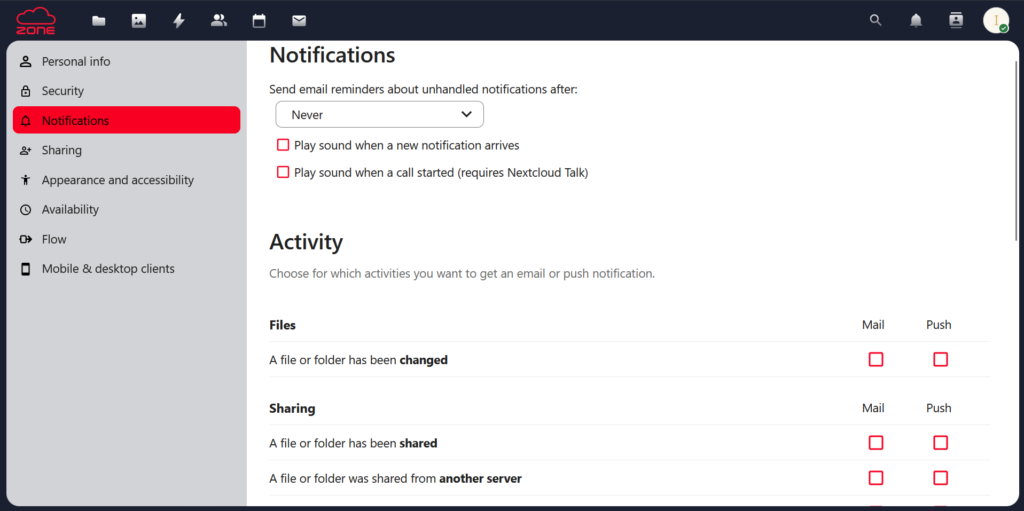
In ZoneCloud, you can set up notifications that are sent to your email when certain activities occur on your account.
To configure notifications, go to the Activities section and click Activity settings and Personal notification settings.
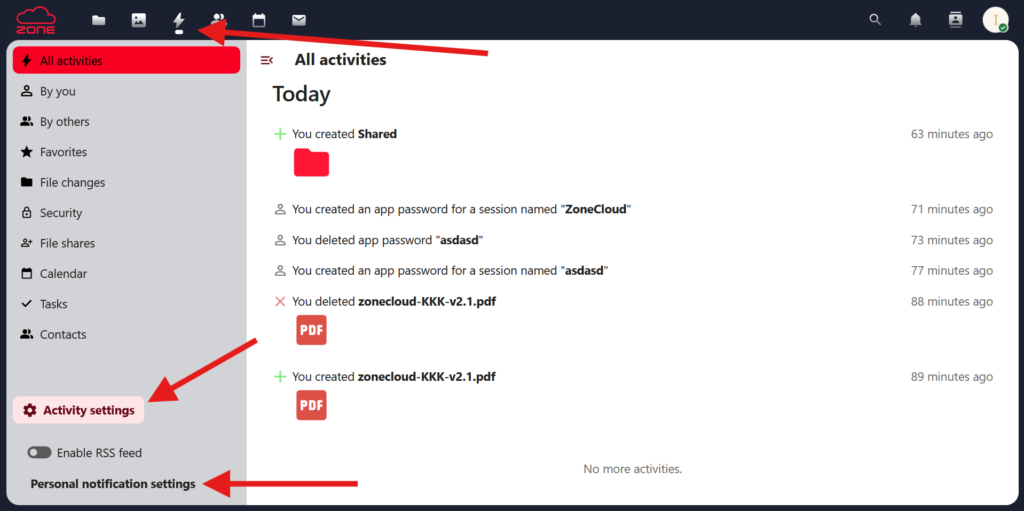
In the following view, you can set the notification frequency and select (with checkboxes) which activities should trigger notifications from ZoneCloud.