
Webmail.ee works in your phone’s browser, but you can add it to your Home Screen as a separate icon. This lets you open webmail with one tap instead of entering the address in your browser each time.
iPhone: add webmail using Safari
-
Open
Safariand go to webmail.ee, and sign in with your email address. -
Tap the
Share iconat the bottom of the screen — the square with an upward arrow.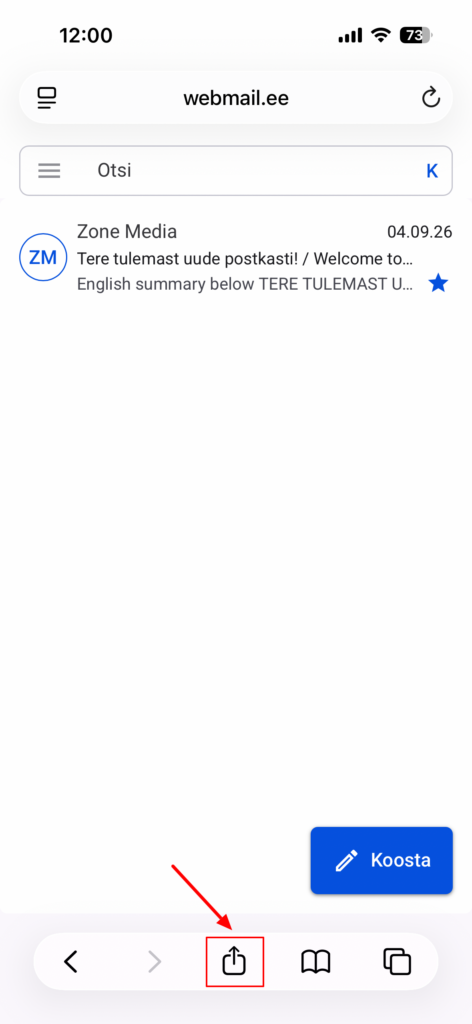
-
Scroll down in the menu and select
Add to Home Screen.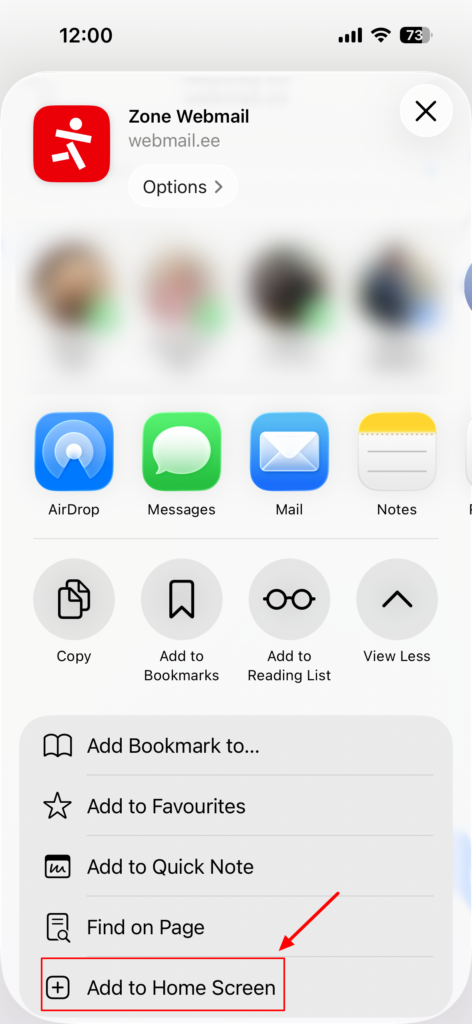
-
You can change the icon’s name if you wish. If you see
Open as Web App, leave it turned on.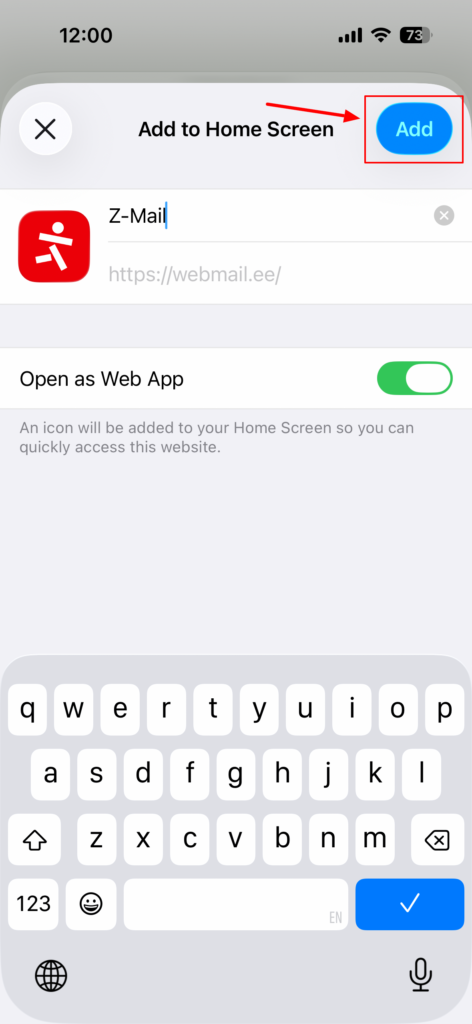
- Tap
Add.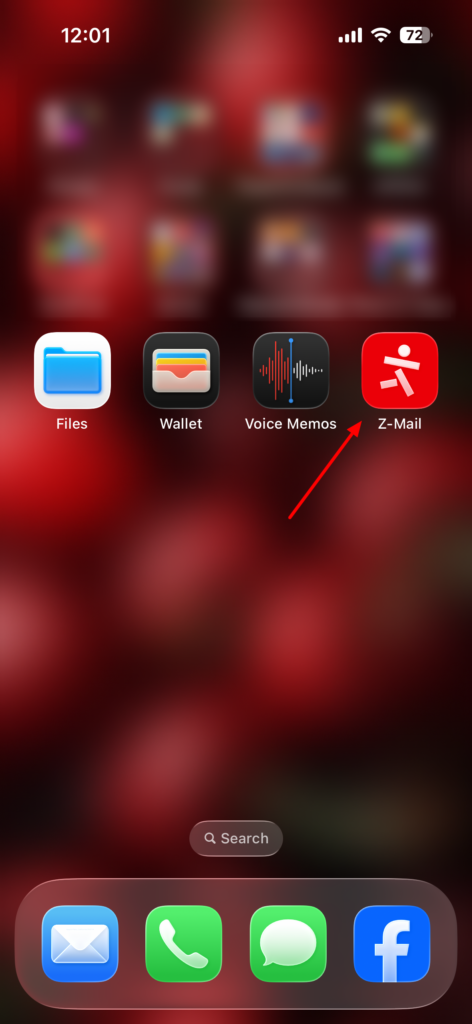
The Webmail.ee icon will appear on your Home Screen. Tap it whenever you want to open your mailbox.
Android: add webmail using Chrome
-
Open
Chromeand go to webmail.ee, and sign in with your email address. -
Tap Chrome’s
three-dot menu. Depending on your phone’s settings, it may be at the top or bottom of the screen.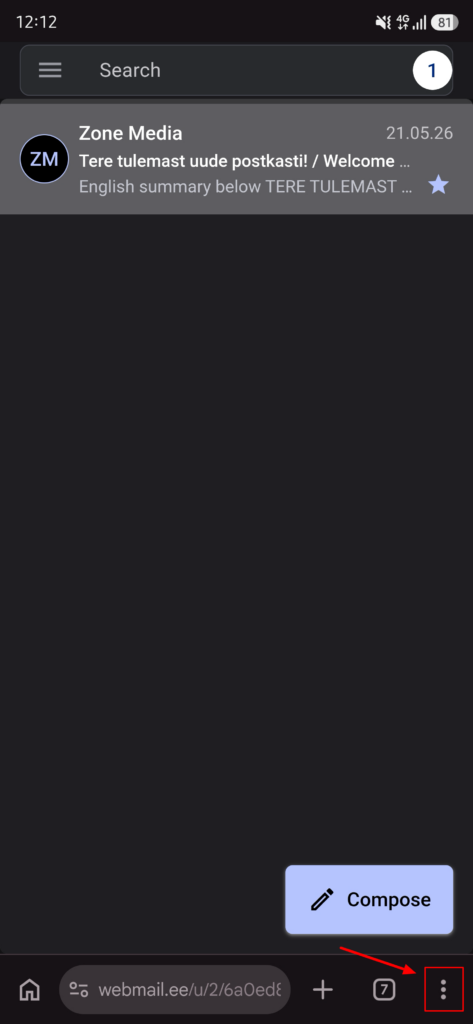
-
Select
Install and create shortcut.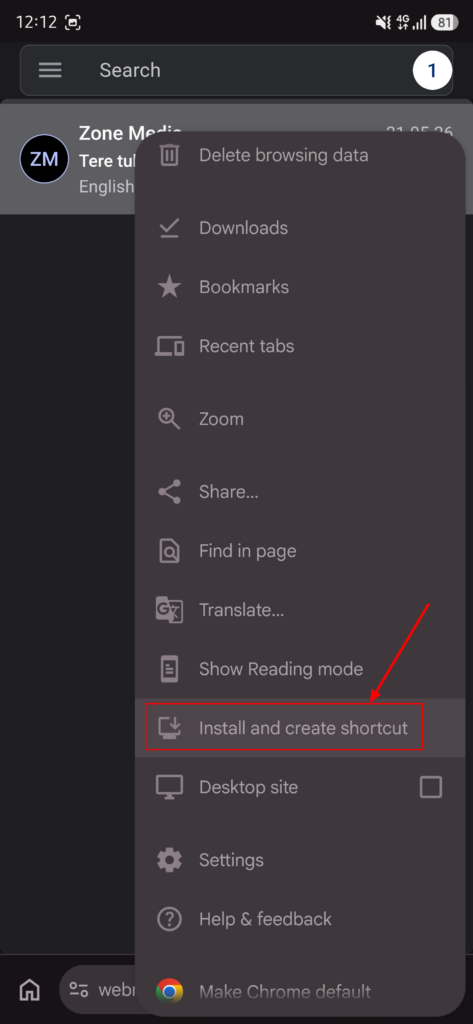
- Select
Install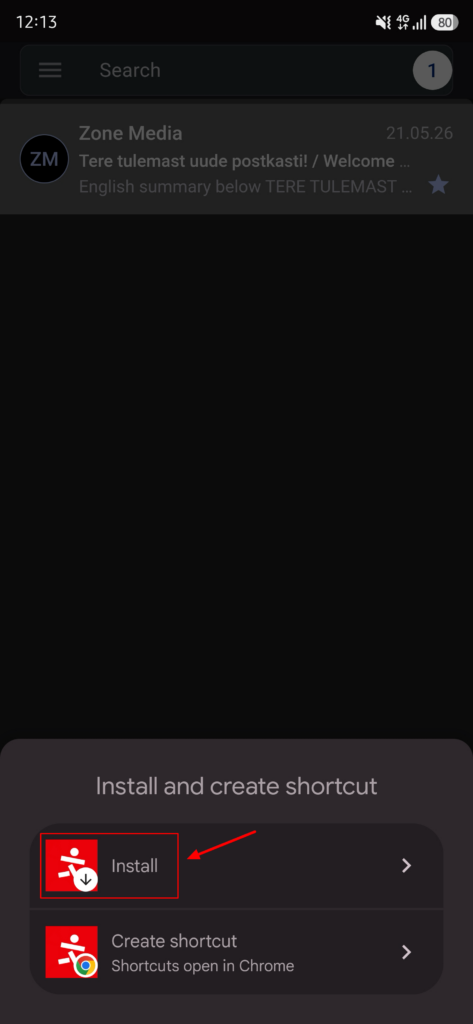
-
In the window that opens, tap
Installagain to confirm.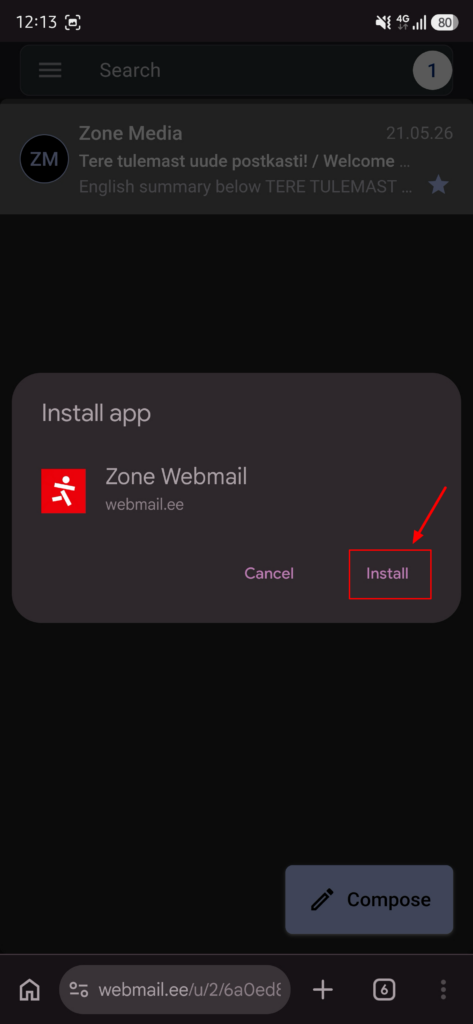
Once installed, you can open Webmail.ee from its icon. If the icon does not appear on your Home Screen, look for it in your app list and move it to the Home Screen if you wish.
Chrome may also offer Create shortcut. This adds a shortcut to your Home Screen that opens Webmail.ee in Chrome. Install gives webmail a more app-like experience.