
The change of ownership of a .EE domain is generally initiated by the new owner.
If the new owner does not yet have a ZoneID account, it can be created on the login page by clicking the Sign up button.
To change the owner, you need to place an order in the My Zone control panel in the domain management section by selecting Change owner.
Direct link to the order form.
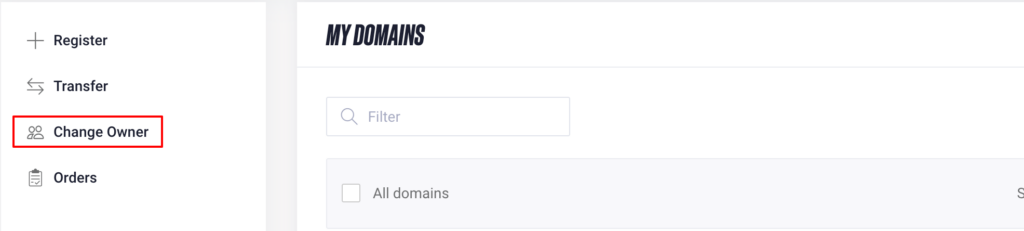
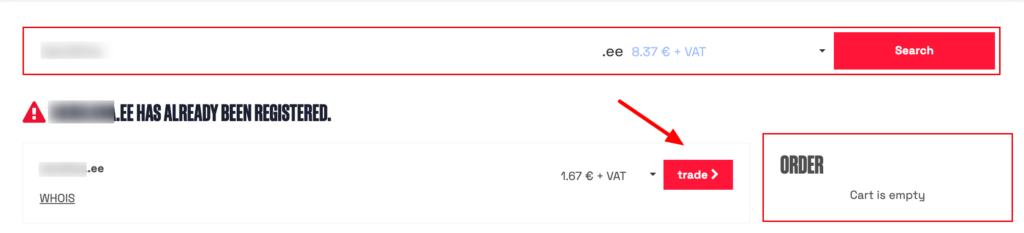
In the window that opens, enter the domain name in the search field.
On the next page, click trade.
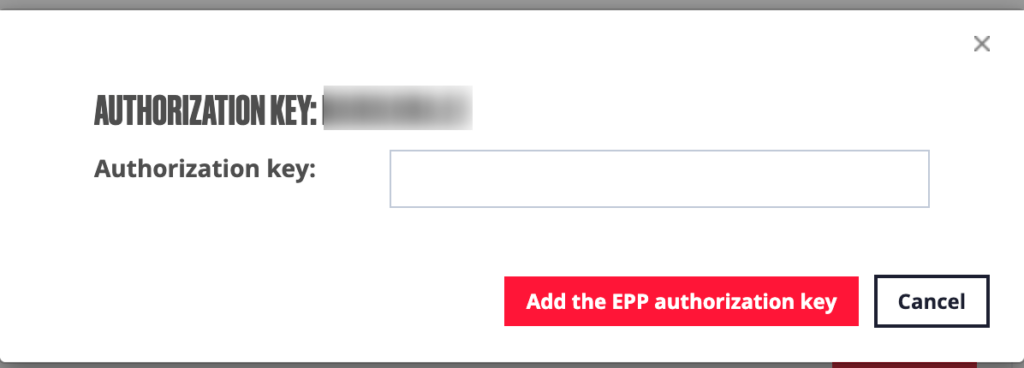
The authorization code must be ordered by the current domain owner from their account and then forwarded to the new owner. The new owner places the order from their own account, and during the process the code must be entered.
After entering the code, click Add the EPP authorization code and Continue.
On the next step, the details of the new domain owner will be displayed. By default, these are the details of the ZoneID account you are currently logged in with.
Order overview
n the order overview, it is shown again which ZoneID account the order will be associated with and to whom the invoice will be issued. At this stage, you can log in with another ZoneID account or create a new one if needed. The details of both the new domain owner and the administrative contact are also displayed and can still be modified if necessary.
If the current domain owner’s account also includes a virtual server service related to the domain, you can request its transfer here. The process is described in more detail below.
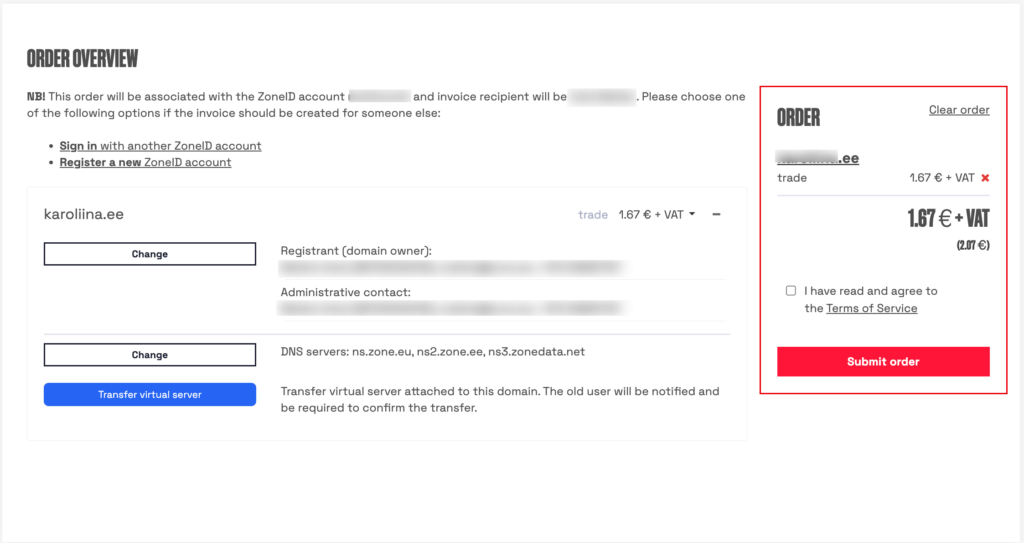
If all details are correct, after reviewing and agreeing to the terms of use, click Submit order.
Signing the application
After submitting the application, the new domain owner can sign the application either digitally or by authorizing it with a payment.
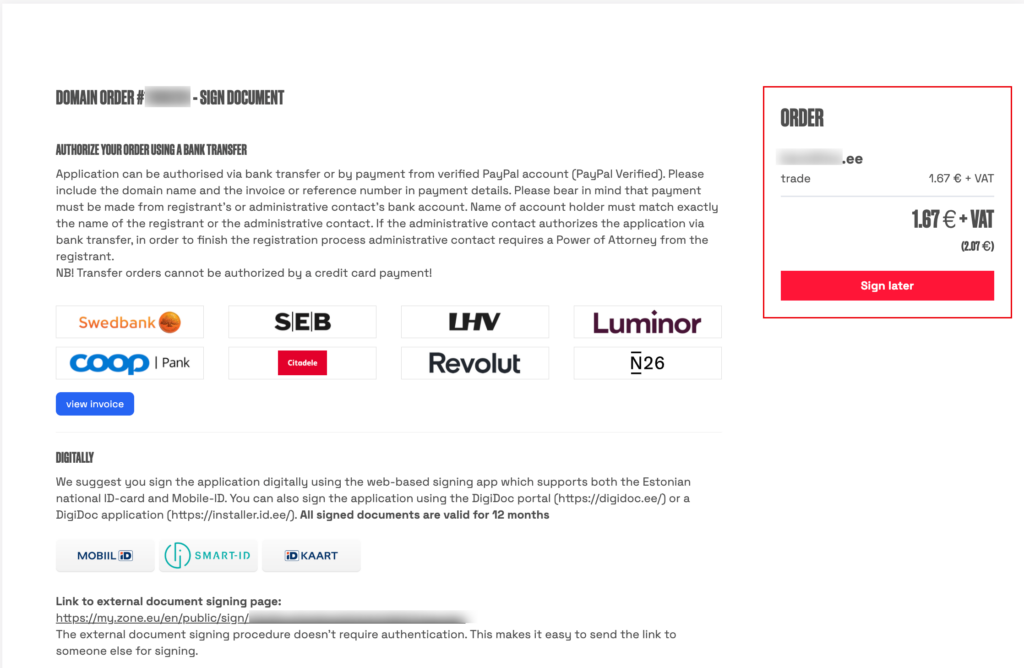
During the application process, the system generates a joint application containing the details of both the new and the current domain owner. The current owner’s details are automatically retrieved from the .EE domain WHOIS database .
After the order is submitted, an email containing a link for digital signing of the application is sent both to the contact email address of the ZoneID account that submitted the order and to the current domain owner’s contact email address listed in the domain details. Using this link, both parties can digitally sign the application.
If you choose digital signature as the authorization method and select one of the available methods, on the next page you will see the signing link and can forward it to the current owner if necessary.
Then click Sign. On the next page, you can download the application to send it to the current owner for separate signing. In that case, the signed application must be sent to us at info@zone.ee.
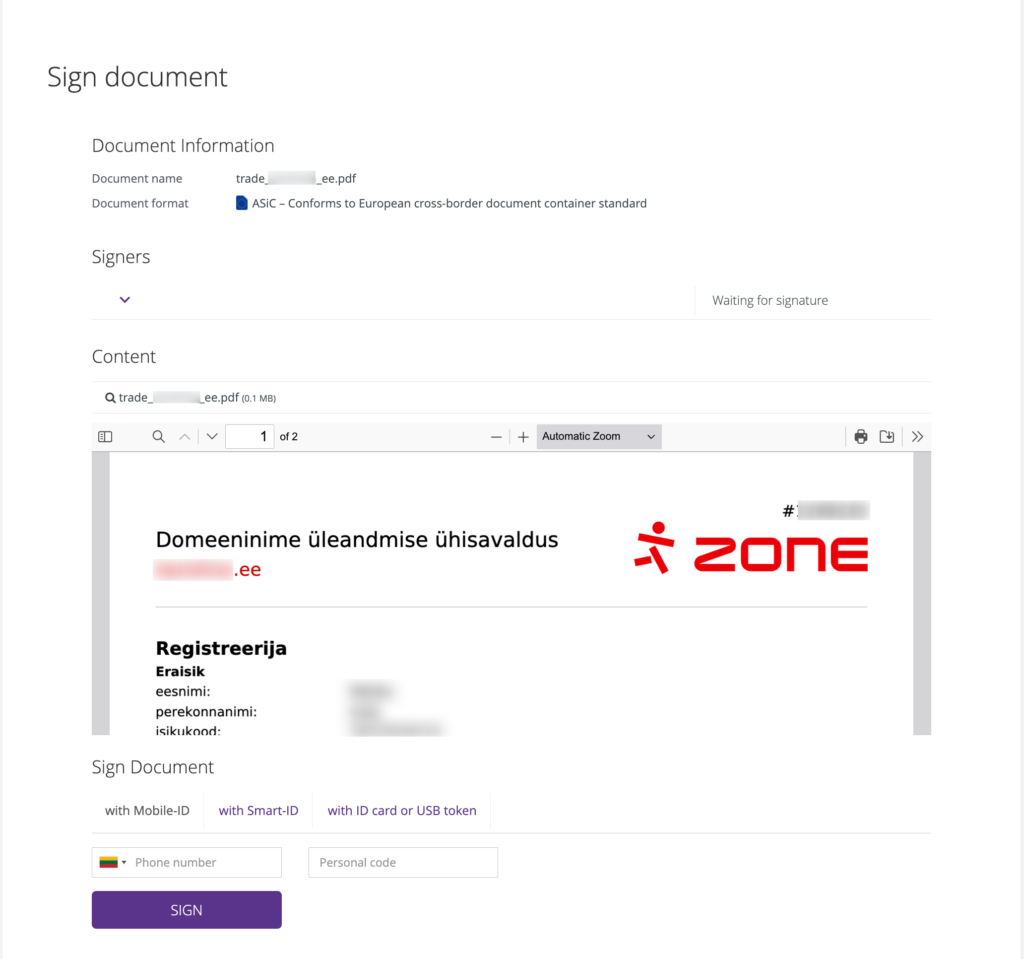
You can read more about signing here.
If the application is signed by a representative of the registrant, a power of attorney must be provided to confirm the right of representation. If the signer already has a power of attorney to represent the registrant, it should be sent to info@zone.ee, including the domain name related to the order. If there is no power of attorney yet, we have a template form that can be used if needed.
You can read more about verifying the right of representation here.
Once the application for change of ownership has been signed by the authorized representatives of both the new and the current owner and the invoice has been paid, the domain will be transferred to the new owner. A confirmation email will be sent to the contact address of the ZoneID account that submitted the order. If you do not receive this email, please contact our customer support so we can check the status of the process.
Virtual server ownership transfer
If the current domain owner’s account includes a server service related to the domain, you can request its transfer during the domain ownership change process. To do this, click the Transfer virtual server button before submitting the order.
After the domain ownership has changed and the domain has moved to the new owner’s account, an email will be sent to the contact address of the previous ZoneID account to confirm the transfer of the virtual server. The email contains a link through which the previous owner can confirm their consent to transfer the virtual server to the new domain owner.
If the previous server owner does not wish to transfer it, the email should be ignored and the link should not be clicked. If confirmed, the server service will also move to the new domain owner’s account, and future billing for the service will be transferred to them. If the previous owner had prepaid for the service, the unused period will be credited and the paid amount will remain on the account as a prepayment. The new owner will receive a new invoice for the service.
If the domain uses a virtual server but it was located in a different account, to change the owner of the server service you must send an email to info@zone.ee.